Table of Contents
Configure Slider Type/Layout Settings #
- Log into your WordPress site and opens the Administration Panel.
- Go to Dashboard > Appearance > Customize
- Open > Main Slider Settings
- Main Slider Settings > Manage all the slider type/layout settings options per as you want & enter related information.
- Click Save > Publish.

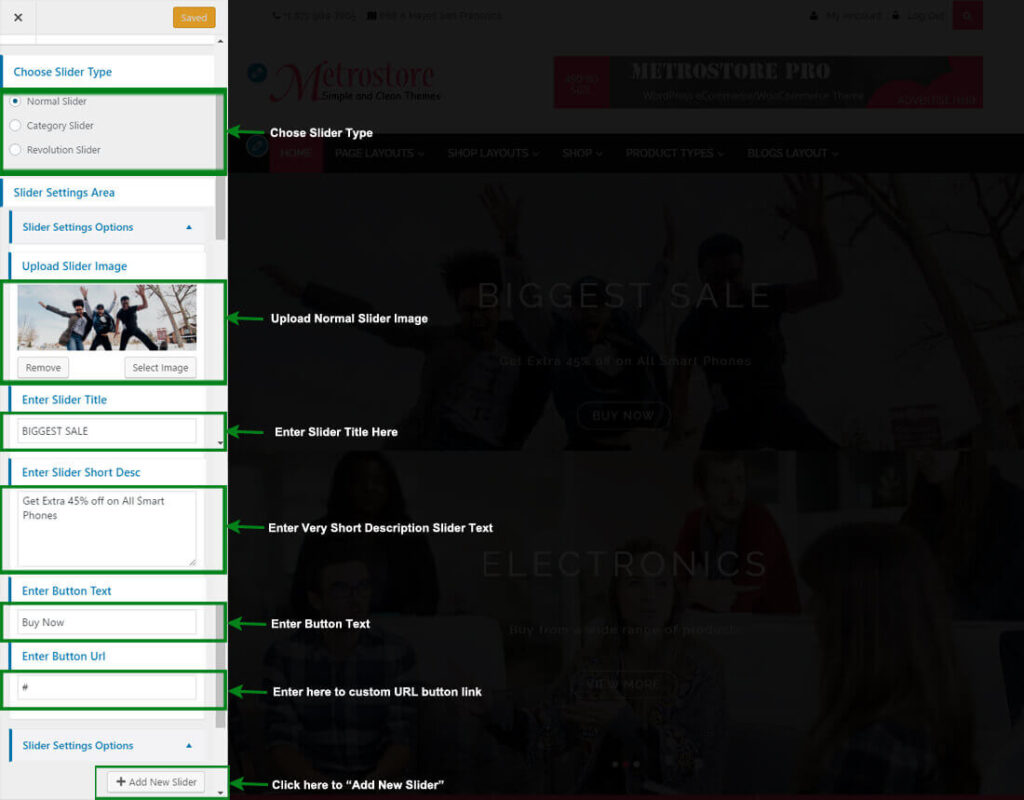
Configure Normal Slider Section #

- Log into your WordPress site and opens the Administration Panel.
- Go to Dashboard > Appearance > Customize
- Open > Main Slider Settings
- Main Slider Settings > Manage all the normal slider settings options per as you want.
- Click Save > Publish.
Configure Category Slider Settings #

Configure Category Slider Settings #
Add New Slider #
- Log into your WordPress site and opens the Administration Panel.
- First of all, create a post for slider
- Add Post Title,Excerpt/Content and feature Image for slider in post field.
- Create a category slider or per as you want and choose slider category for specific post & save it.
- Click Save > Publish.
We have managed the slider button from post content. if you want to add button in slider add the following div structure. #
- <div class=”ms-btn” > <a href=”#”>Buy Themes</a> </div>
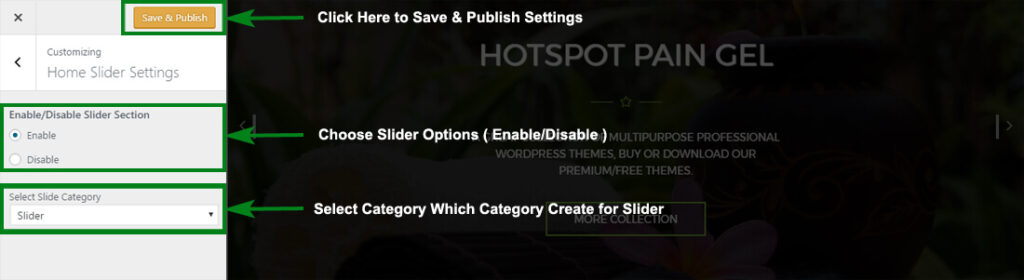
Configure Slider Section #
- Log into your WordPress site and opens the Administration Panel.
- Go to Dashboard > Appearance > Customize
- Open > Home Slider Settings
- Home Slider Settings > Manage all the options per as you want.
- Click Save > Publish.